 FigEditor
AI Flowchart Generator from Text
FigEditor's AI Flowchart Generator turns a plain-English process into a polished flowchart image. Choose an image model, preserve labeled decisions and loops, and download the result in high resolution.
✓ Plain-English process descriptions
AI Flowchart Generator
277 / 2,000
Preview
Approval Process
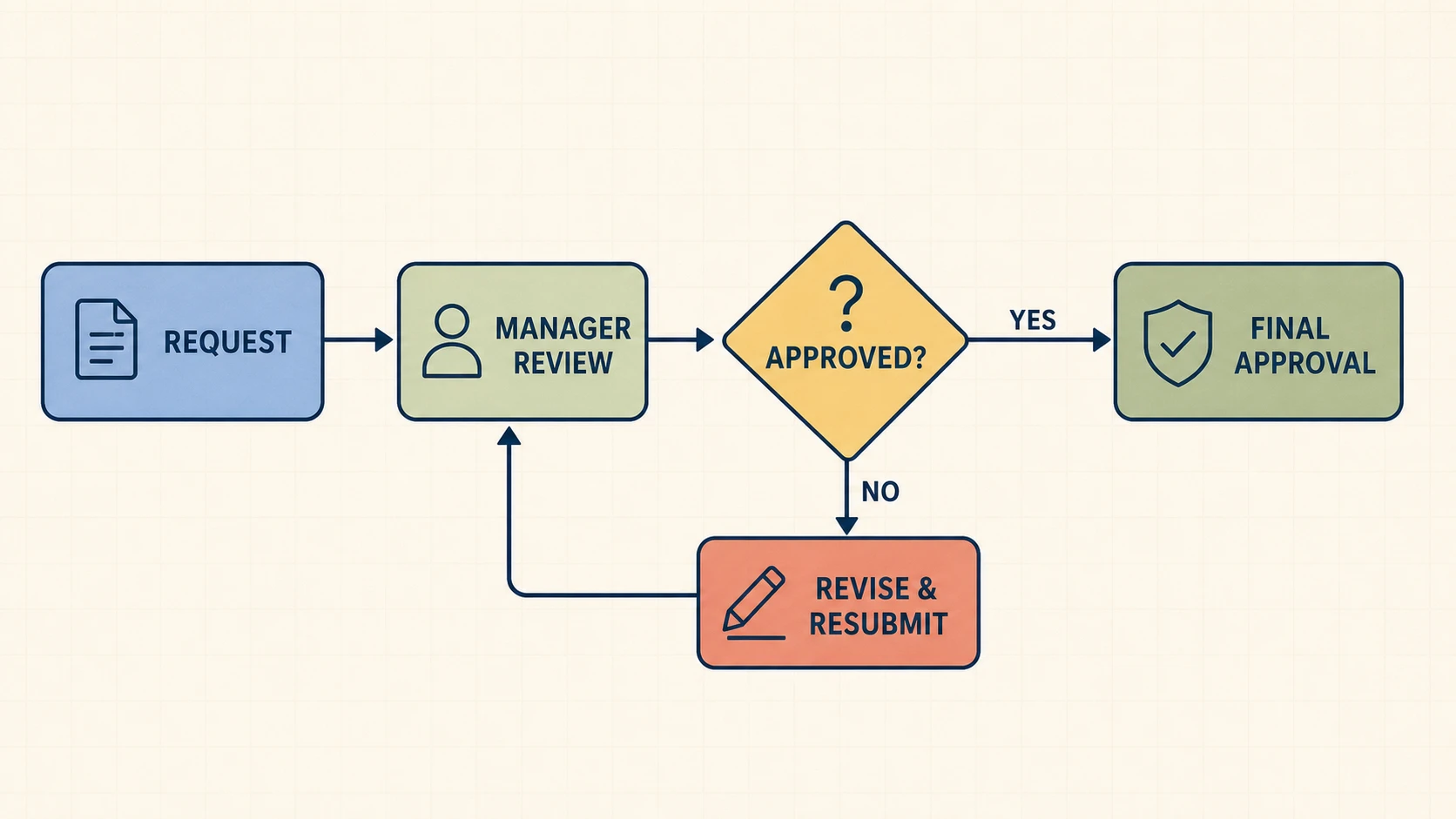
Review, approve, or revise a request with one clear loop.
Examples
Create Flowcharts for Processes, Software, and Research
Use the same text-to-flowchart workflow for operational documentation, technical logic, and academic methods.
Visualize Software and Algorithms
Map Research Methodology
Generate Clear Flowcharts from Process Descriptions
02 FLOWCHART INTELLIGENCE
Keep Yes/No and Conditional Branches Explicit
Describe a decision as a question and state each outcome. The draft separates the paths, labels the branches, and keeps error routes connected to the correct recovery step.
Preserve Retries, Reviews, and Feedback Loops
Show what happens when a test fails, data needs review, or a user must correct an input. Loop-back connectors stay visible instead of being flattened into a one-way list.
Continue Refining the Image in FigEditor
Open the generated result in FigEditor for image-level AI edits, visual cleanup, annotations, and additional iterations without rebuilding the prompt from scratch.
Why Use an AI Flowchart Maker from Text
Move from a written process to a polished visual without drawing every box, branch, and return path manually.
Skip the Blank Canvas
Start from a complete first draft instead of manually adding, aligning, and reconnecting every shape. Faster first draft
Write the Process in Plain English
Describe steps and conditions in the language your team already uses. No Mermaid, XML, or diagram syntax is required. No code required
See the Credit Cost Before Generation
Choose the image model, aspect ratio, and resolution before generation so the credit cost and output format stay predictable. Transparent workflow
Make Logic Problems Visible
A visual draft exposes missing outcomes, unclear handoffs, disconnected steps, and loops that return to the wrong place. Reviewable structure
Refine the Generated Image
Open the result in FigEditor for image-level AI changes, visual cleanup, annotations, or another iteration based on the original process. AI image editing
Download a High-Resolution Result
Save the generated flowchart for documents, presentations, knowledge bases, and review workflows, with watermark rules based on your plan. High-resolution download
How to Generate a Flowchart from Text in 3 Steps
Describe the workflow, choose an image model and size, then review and download the generated flowchart.
Describe Steps, Decisions, and Outcomes
Name the start and end, put actions in sequence, and write each decision as a question with the result of every branch.
Choose a Model, Size, and Generate
Select an image model, aspect ratio, and resolution. FigEditor combines your process with a flowchart-specific system prompt and starts the image generation task.
Review, Download, or Continue Editing
Verify every label, arrow, branch, loop, owner, and endpoint. Download the image or open it in FigEditor for image-level refinement.
Simple pricing
Create more. Explain better.
Choose a plan designed for the way you communicate research.
Basic
$19$9.5/month
For individual researchers who need the complete visual workflow with a practical credit allowance
Start creating- 5,040 credits per year
- ≈ $0.18/image
- All scientific figure tools
- High-resolution PNG exports
- Commercial use included
Plus
$39$19.5/month
For researchers who need more iterations, commercial use, and every advanced visual workflow
Start creating- 12,960 credits per year
- ≈ $0.14/image
- All scientific figure tools
- High-resolution PNG exports
- Commercial use included
Enterprise
$69$34.5/month
For teams that need high-volume credits, commercial use, and support across the full workflow
Start creating- 28,800 credits per year
- ≈ $0.12/image
- All scientific figure tools
- High-resolution PNG exports
- Commercial use included
Frequently asked questions
What is an AI flowchart generator?
This type of tool converts a written process into a visual image with actions, decisions, branch labels, loops, and endpoints. FigEditor uses a flowchart-specific system prompt with the selected image model, then returns a result you can review and download.
Can AI generate a flowchart from a text description or code?
Yes. Paste a plain-English workflow or describe the relevant code path, including its conditions, errors, retries, and end states. FigEditor sends that description to the selected image model with strict instructions for standard shapes, labeled branches, and visible loop-back paths.
How should I describe a process for an accurate flowchart?
Use one action per step, name the start and final outcome, and write decisions as questions. State where each Yes, No, pass, fail, revise, or retry path goes. Include any owner, phase, or loop that readers must see.
Can the generator create decision branches and feedback loops?
Yes. Conditional outcomes can become labeled branches, while retry, revise, reopen, and feedback paths can return to an earlier step. Review every generated route against the real workflow because the process owner remains responsible for its accuracy.
Can I edit the AI-generated flowchart?
The generator returns a raster flowchart image rather than a structured SVG. You can open the result in FigEditor for image-level AI edits and visual cleanup. For precise node-by-node or connector editing, use the separate Flowchart Studio workflow.
Can I download the generated flowchart?
Yes. The generator provides a downloadable high-resolution image after the task finishes. Free-plan downloads may include a watermark, while available unwatermarked download options depend on the current account and plan. This image generator does not return a structured SVG.
Does flowchart generation use credits?
You can write a process and explore every on-page example without using credits. Starting an image generation task uses FigEditor credits based on the selected model and resolution, and the exact cost appears on the generate button before submission. Review pricing and generation credits
Is it safe to diagram sensitive workflows with AI?
Do not paste secrets, credentials, regulated personal data, or confidential details that are unnecessary for the diagram. Review FigEditor's Privacy Policy and your organization's data rules before submitting a sensitive workflow, then verify the generated chart before distribution. Read the FigEditor Privacy Policy