
Research figures, with room to revise
AI scientific figures with an editable next step
Describe the relationships your research needs to show, then develop a figure draft in FigEditor.
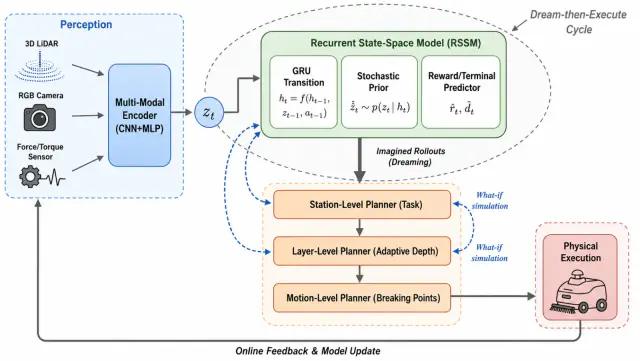
Inspect the output before editing: generated regions may be raster images, and tracing does not recover the original drawing objects or guarantee editable labels.
What an AI scientific figure generator produces
An AI scientific figure generator turns a written brief into a first visual draft: the entities you name, the direction of the relationships between them, and the labels you need. Treat the result as a starting point for review. Generated regions may be raster images; inspect the actual output before choosing vector conversion or manual editing.
What the draft cannot do is understand your experiment. It arranges what your brief describes; it does not know which pathway is confirmed, which arrow is uncertain, or which control is missing. Treat a generated draft as a layout proposal and check every scientific claim against your own material.
- A brief, not a picture
- Describe entities, relationships and labels in words, then reword the brief until the draft matches the structure you had in mind.
- Output you can keep editing
- Move, relabel and recolour objects in the editor instead of regenerating the figure from scratch.
- A review step you own
- Generation does not replace checking terminology, direction, units and evidence before the figure is exported.
Figure examples
Browse figure examples
Layouts and styles researchers actually use. Open any of them in the workspace as a visual reference and write your own prompt.
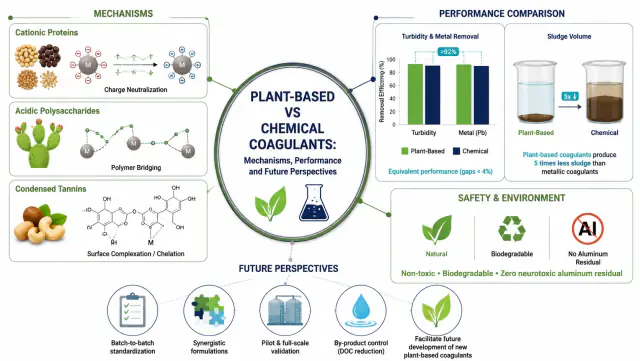
Plant-based and chemical coagulation mechanisms
World-model robotic planning workflow

Algae carbon-to-biopolymer graphical abstract
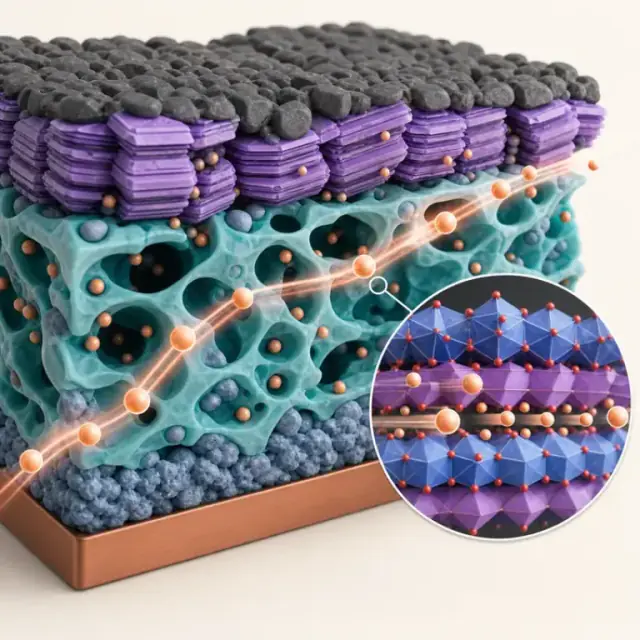
Solid-state battery electrode microstructure
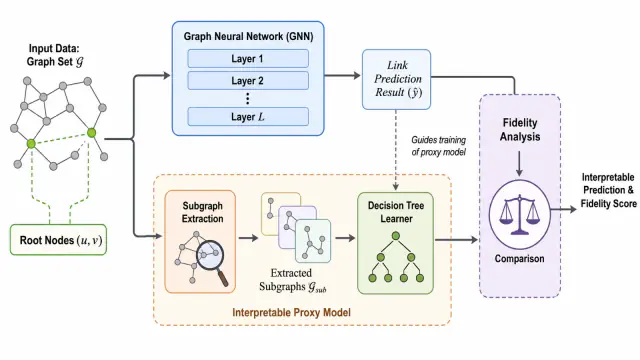
Interpretable graph neural network link prediction
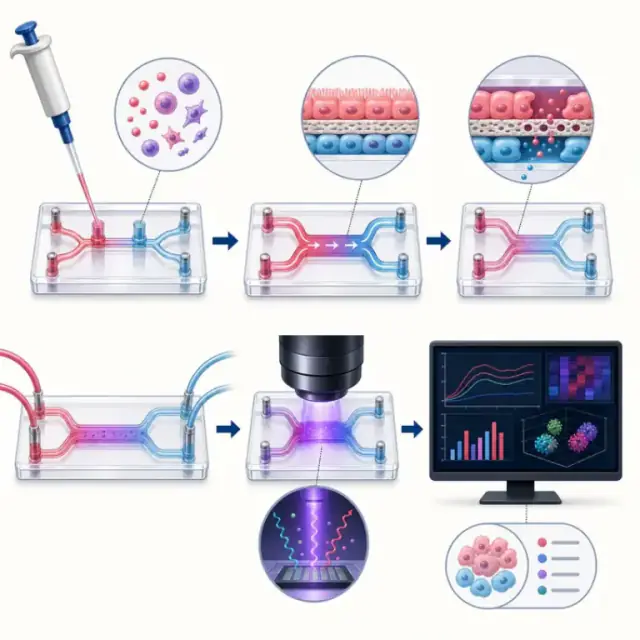
Microfluidic organ-on-chip workflow

Multimodal AI safety evaluation graphical abstract
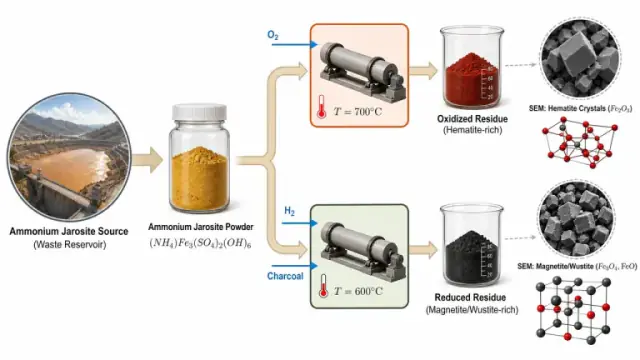
Oxidation-reduction control of iron-oxide microstructure
Draft first, correct second
Generate the first version of the figure, then fix labels, arrows and emphasis in the editor instead of drawing the whole panel again.
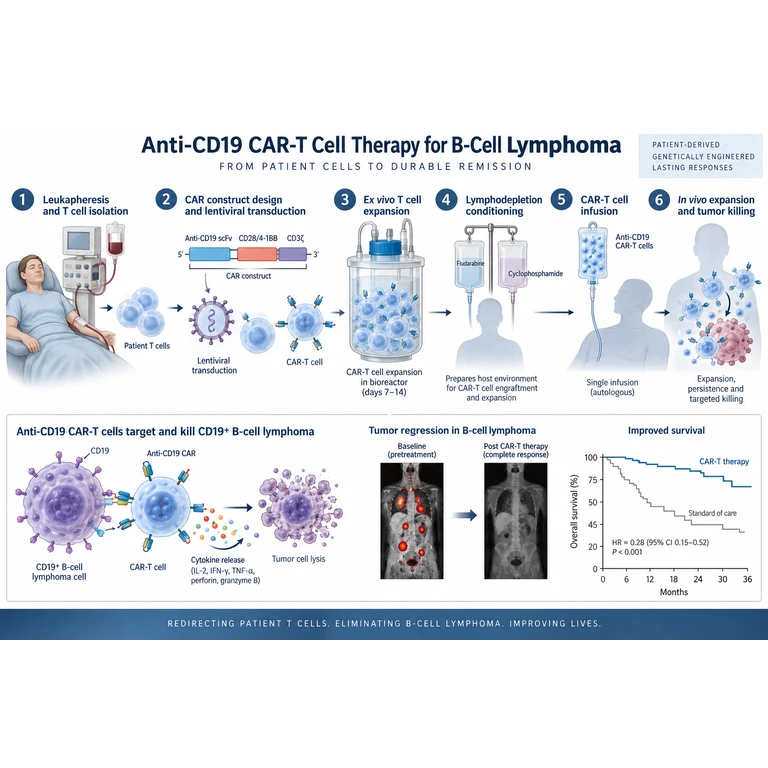
Keep the versions you compare
Every generation and edit is saved, so you can weigh two directions and return to an earlier draft without rebuilding it.
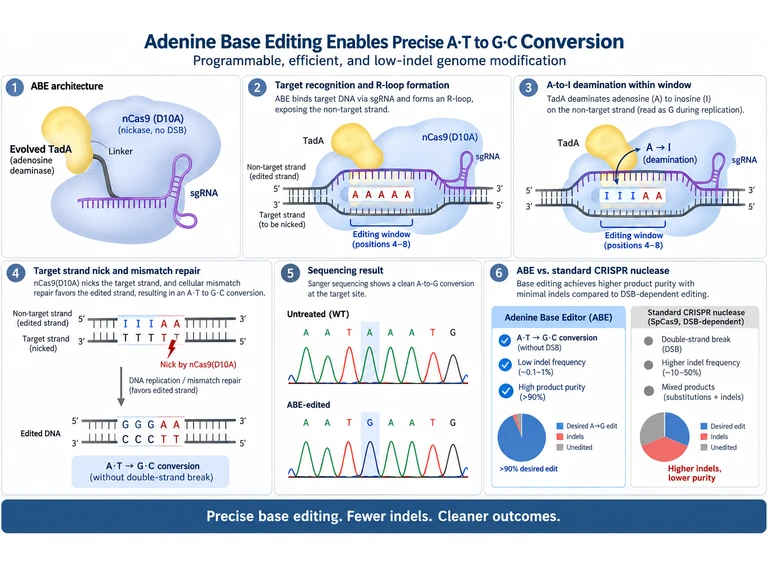
Export something you can still edit
Take a high-resolution PNG for a draft or an editable SVG when the figure still has to change inside PowerPoint, Illustrator or Figma.
Common mistakes with AI-generated research figures
Publishing the first draft
A generated draft is a proposal. Move labels, shorten wording and confirm every arrow before the figure reaches a manuscript.
Describing a paper instead of a figure
A brief that summarises the whole study produces a crowded panel. Name the one relationship or process the figure has to show.
Trusting unfamiliar domain shapes
If a generated cell, molecule or apparatus is drawn incorrectly, correct it in the editor; the model does not know your field's conventions.
Canvas size and export formats for a generated figure
| Setting | What applies | Why it matters |
|---|---|---|
| Working canvas | Choose the output shape at generation time; square, landscape, portrait and wide formats are available. | Pick a shape that matches the space the figure has to fill so the layout survives later cropping. |
| Output resolution | Generate at 1K, 2K or 4K. | Use the smallest size that still reads at the final placement. |
| Vector output | Export SVG from the editor for artwork that has to scale. | Check that any embedded photographic region still meets the destination's rules. |
| Slide handoff | PPTX export moves the panel into presentation software. | Verify object positions after conversion and keep the SVG as your master copy. |
Check your destination's own author guidelines before export. Journal and conference specifications change, and they take precedence over any general recommendation.
A workflow you can inspect
Define the research brief
List the entities, relationships, labels and visual emphasis. Add only research information you can support.
Review the draft
Compare the generated figure with your evidence. Correct terminology, missing steps and misleading relationships.
Refine and export
Continue with the editor and inspect the downloaded file before using it in a paper or presentation.
FAQ
Questions before you start
Can I bring a reference or sketch?
The generation workspace accepts a research description and reference images. Use references you have permission to use and review the resulting interpretation.
Is the result scientifically verified?
No. A generated draft needs review by someone who understands the research, including labels, directions, units and claims.
What should I prepare before generating?
List the entities, the relationships between them, the reading direction and the labels you need. A clear brief makes the first draft faster to check.
Where do I go after the draft?
Review the draft in the workspace, then adjust labels and shapes in the editor and export the version you have verified.
How do I choose a tool?
For an existing bitmap, use SVG conversion. For an existing vector file, open the SVG editor. For a new research visual, start with the generation workspace.
Ready to start on your next figure?
Bring a description, sketch or reference image into the workspace and finish the draft yourself.