
Is Your AI Figure Really Editable? Inspect the SVG Objects
Recognize embedded bitmaps, outlined labels and true text, then repair a scientific diagram without assuming the file extension guarantees editability.
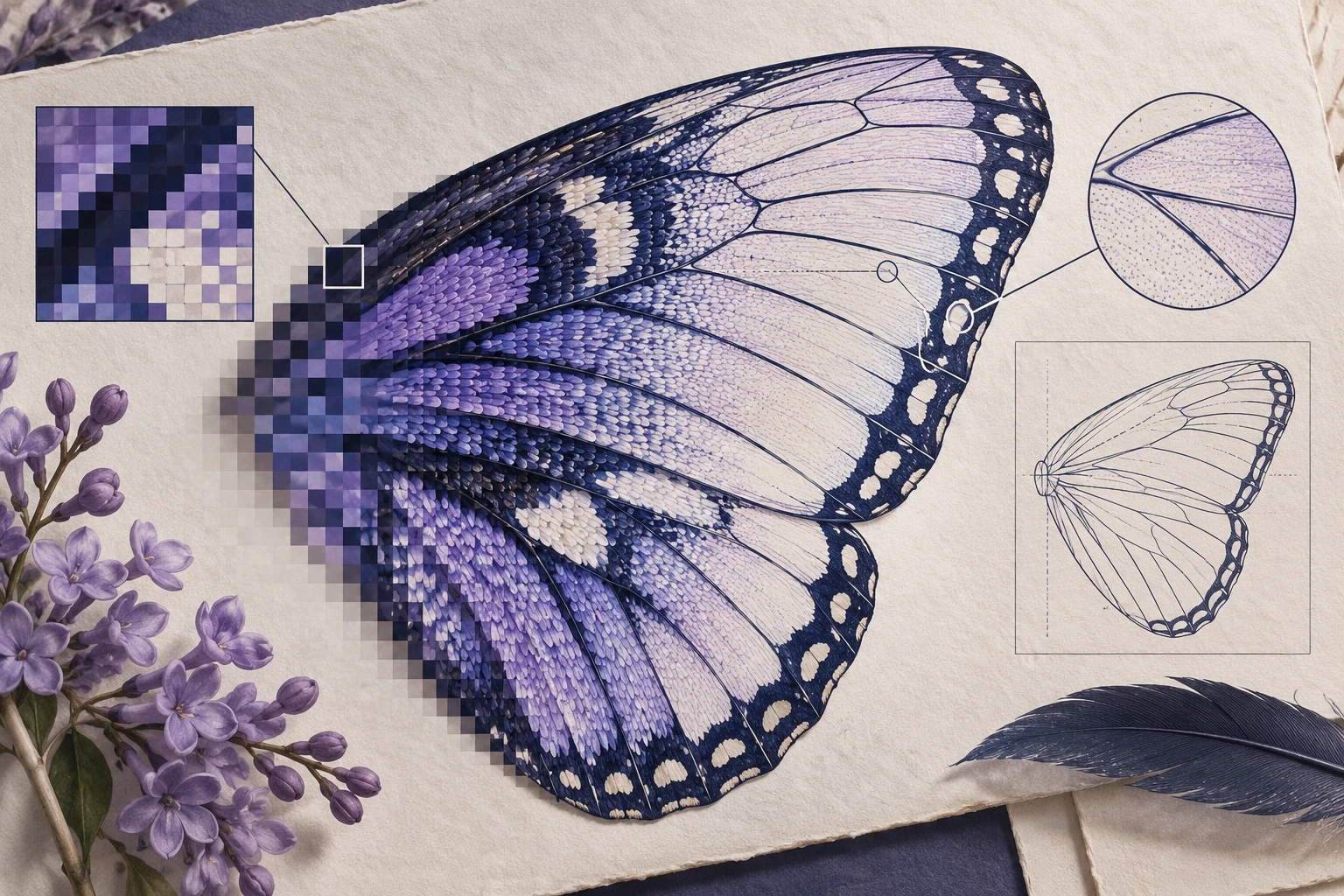
An SVG can contain a single PNG image. It can also contain thousands of paths that look like letters but cannot be edited as text. Both are valid SVG files; neither gives a coauthor the same revision options as a drawing with separate shapes and labels. Here is how to tell what you received.
Three different files with the same extension
Imagine a membrane diagram labelled ‘Extracellular’ and ‘Cytoplasm’. These minimal fragments represent three different editing situations:
<!-- A: the whole figure is a bitmap inside SVG -->
<image href="data:image/png;base64,..." width="1200" height="800" />

<!-- B: a label is converted into shapes -->
<g id="label"><path d="M 10 20 ..." /></g>

<!-- C: text and an arrow are separate objects -->
<text x="40" y="60">Extracellular</text>
<path id="transport-arrow" d="M 100 80 L 100 160" />
In A, moving the label independently means editing pixels or adding a replacement overlay. In B, you can recolor the letter outlines, but changing a word requires rebuilding it. In C, you can usually edit the text string directly, subject to the editor’s support and font availability. The W3C SVG text specification defines text elements; the embedded-content specification explains the image element. Those are different object types, not competing quality levels.
Try one scientifically meaningful edit
Open a copy in the SVG editor. Select the ‘Extracellular’ label and change it to ‘Extracellular space’. Then select the transport arrow and reverse its direction. The successful result has three properties: the new words are present, the arrow alone changes direction, and the membrane geometry stays fixed.
If the entire diagram selects as one object, look for an embedded image or an enclosing group. Ungroup once and inspect again; repeated ungrouping will not turn a bitmap into vector geometry. If individual letters select separately, they may be paths. Keep the original file and rebuild only the label that must change.
Repair labels without damaging the biology
For a raster diagram with a plain background, cover the old label with a background-colored shape and add new text above it. This is a presentation repair, not restoration of the hidden drawing beneath the label. If the old label overlaps a membrane or cell structure, redraw that affected region or obtain a cleaner source instead of concealing it with a broad white rectangle.
For outlined labels, place fresh text on a separate layer, align it with the original baseline, then remove the obsolete outlines. Keep the font and size consistent across all labels. Save an editable master before making an outlined copy for a particular recipient.
Do not trace everything indiscriminately
Tracing a smooth silhouette can be useful. Tracing a detailed cell illustration may create thousands of tiny shapes, jagged text and difficult-to-edit gradients. It also cannot recover the original semantic objects: an automatically traced membrane is not automatically a well-organized ‘membrane’ layer.
Use a small crop as a test. Compare the original and trace at the intended manuscript size, inspect edge quality, and count the practical edits needed. Often the best mixed workflow keeps a raster illustration and adds vector arrows, panel letters and labels.
Deliver a revision-friendly package
Include the editable master, a preview export, the fonts or font information where licensing permits, and a short note identifying any raster regions. Ask a coauthor to make one label change before declaring the handoff complete. ‘SVG supplied’ is a format statement; ‘labels and arrows independently editable’ is a tested capability.